Article verified for Release 15.1 on February 24, 2026.
This article explains how to export a report that includes all testing locations, along with their corresponding location IDs, external IDs, and time zones. Exporting these reports can help administrators and proctors keep track of testing centers, manage assignments, and ensure accurate scheduling.
Exporting the Testing Locations
To export a report of all testing locations with their location IDs:
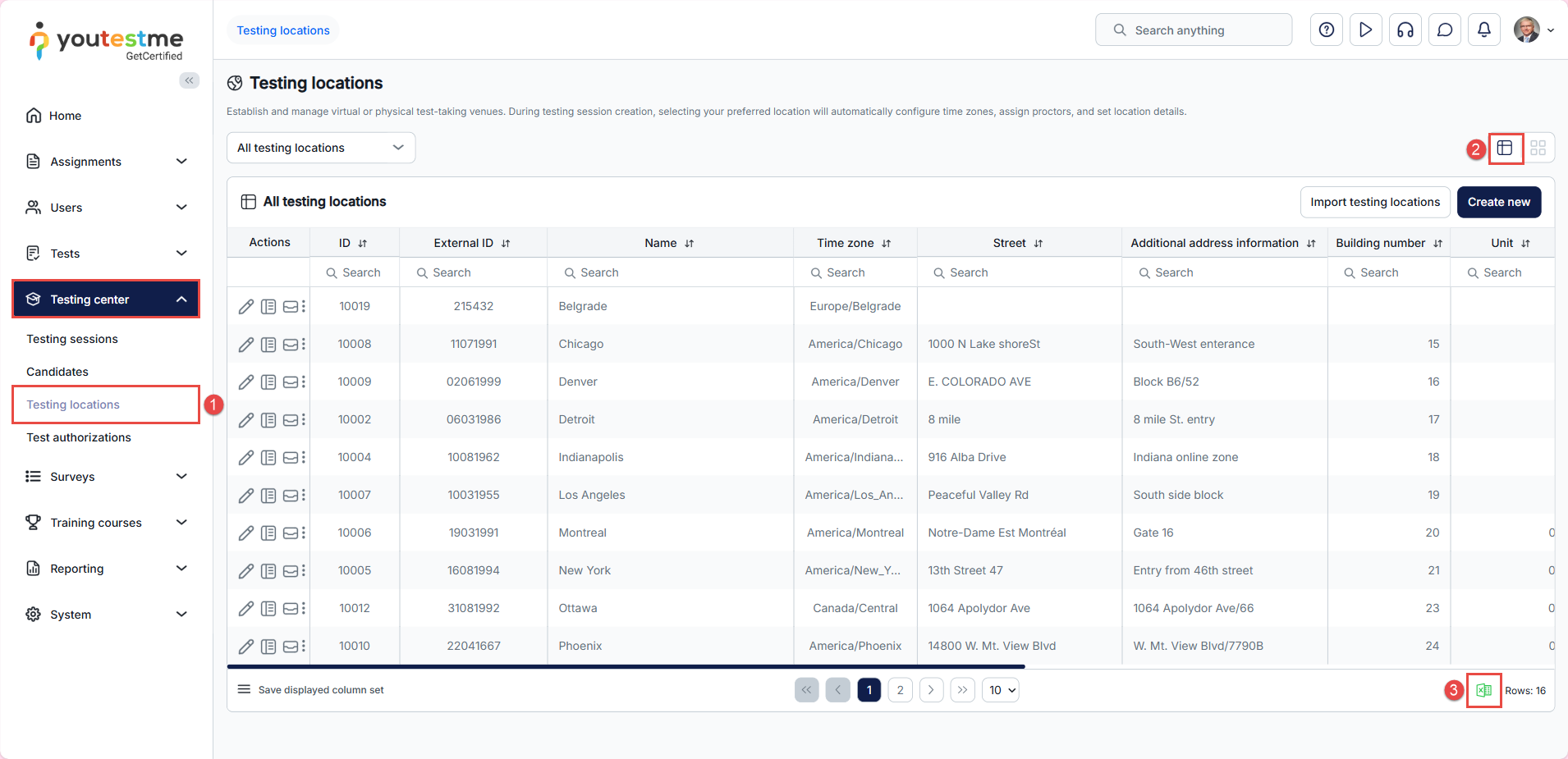
- In the left-hand menu, click Testing Center > Testing Locations.
- Switch to the List View.
- Click the Excel icon in the bottom-right corner to export the report as an Excel file.
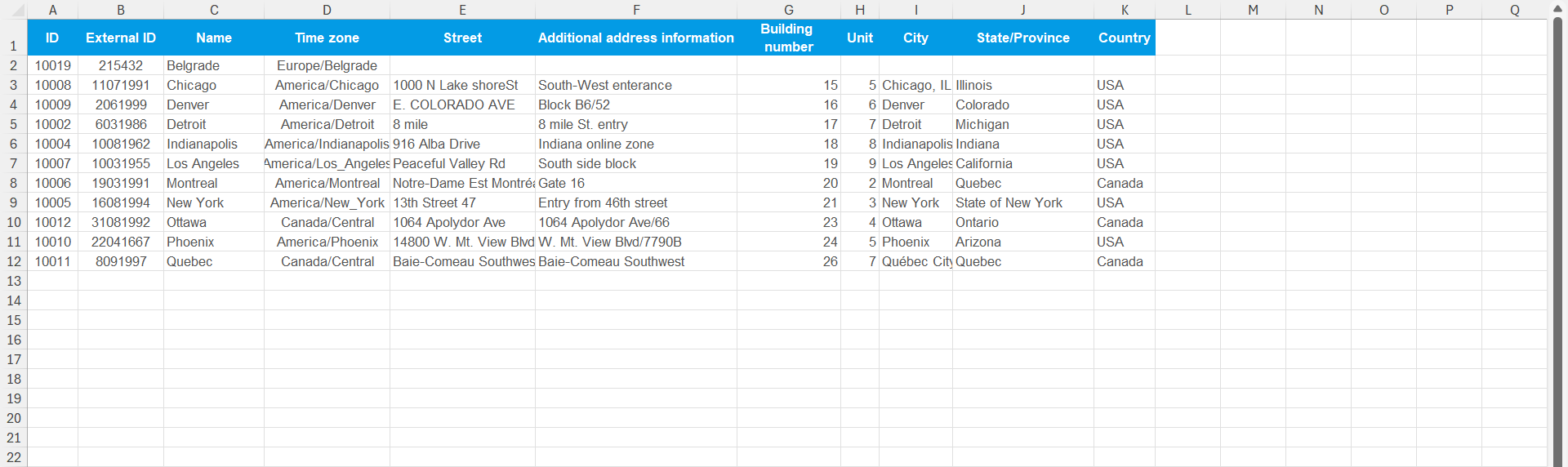
Open and preview the report that contains the testing locations, IDs, external IDs, and time zones associated with locations.
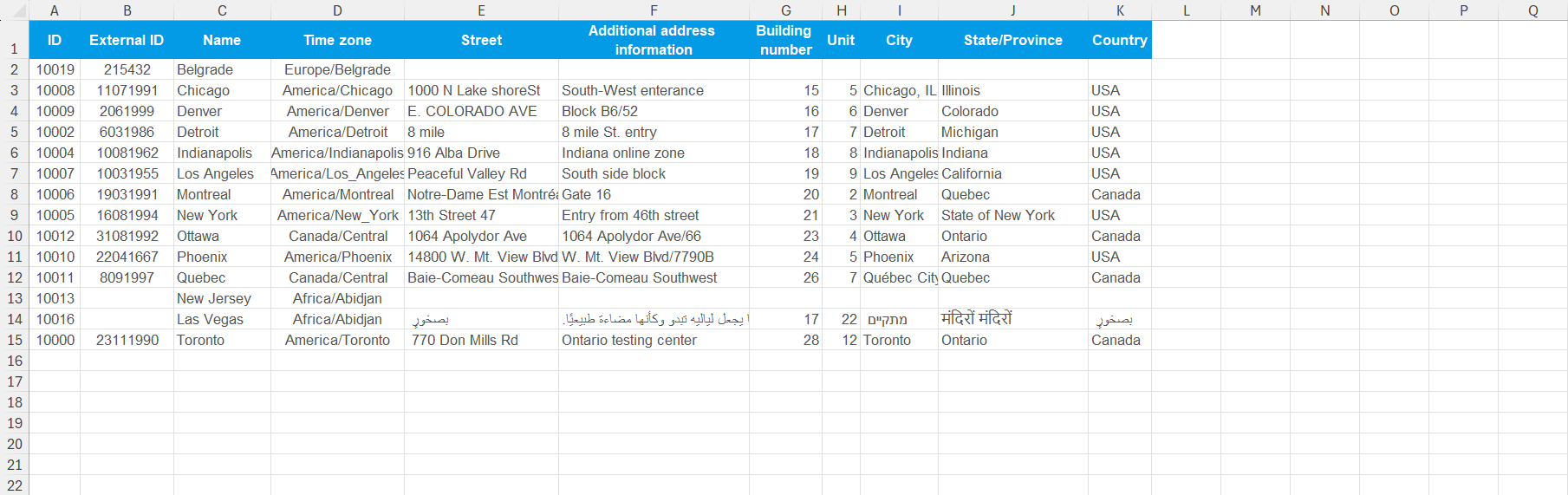
Note: Following the same procedure, you can export the report that contains the list of all locations you created or the list of locations with you as a proctor.
For more related instructional materials, please see: